> ## Documentation Index
> Fetch the complete documentation index at: https://docs.synscribe.com/llms.txt
> Use this file to discover all available pages before exploring further.
# How to set up refiners for your content
> Set up your default post-production refiners once so every post gets a TLDR, FAQ, product alignment, and CTA banner.
Refiners are post-production passes that edit a draft after the engine writes it: a TLDR at the top, an FAQ at the bottom, product alignment that puts your company ahead of competitors, and a CTA banner in the body. Set the default set up once and every post gets those passes. The quickest way is to ask Pi in a new chat: send `setup my default refiners` and it creates the standard set for your account. You can also build and manage them by hand on the Content Refiners page (`/app/refiners`, in the sidebar under Content). Set up your [image generator](/platform/set-up-image-generators) first, since the CTA banner refiner uses it. Refiners are configured here and run per post once a draft exists.
## What a refiner does
Each refiner is one focused edit applied after the draft is written. In the draft's version stack you can compare the original against each pass, so every change is reviewable. The usual set:
* TLDR summary at the top. A few bullets that make the piece quick to read and easy for answer engines to pick up from the opening lines.
* FAQ section at the bottom. Relevant Q\&As, which some answer engines index on.
* Product alignment. Demotes competitors and surfaces your company in their place, in context, so the content reads as yours.
* CTA banner. Inserts a call-to-action image where it fits, routed to the right destination.
## Ask Pi to set up the default set
Set up your [image generator](/platform/set-up-image-generators) first: the CTA banner refiner uses it. Then, in a new chat, ask Pi:
```text theme={null}
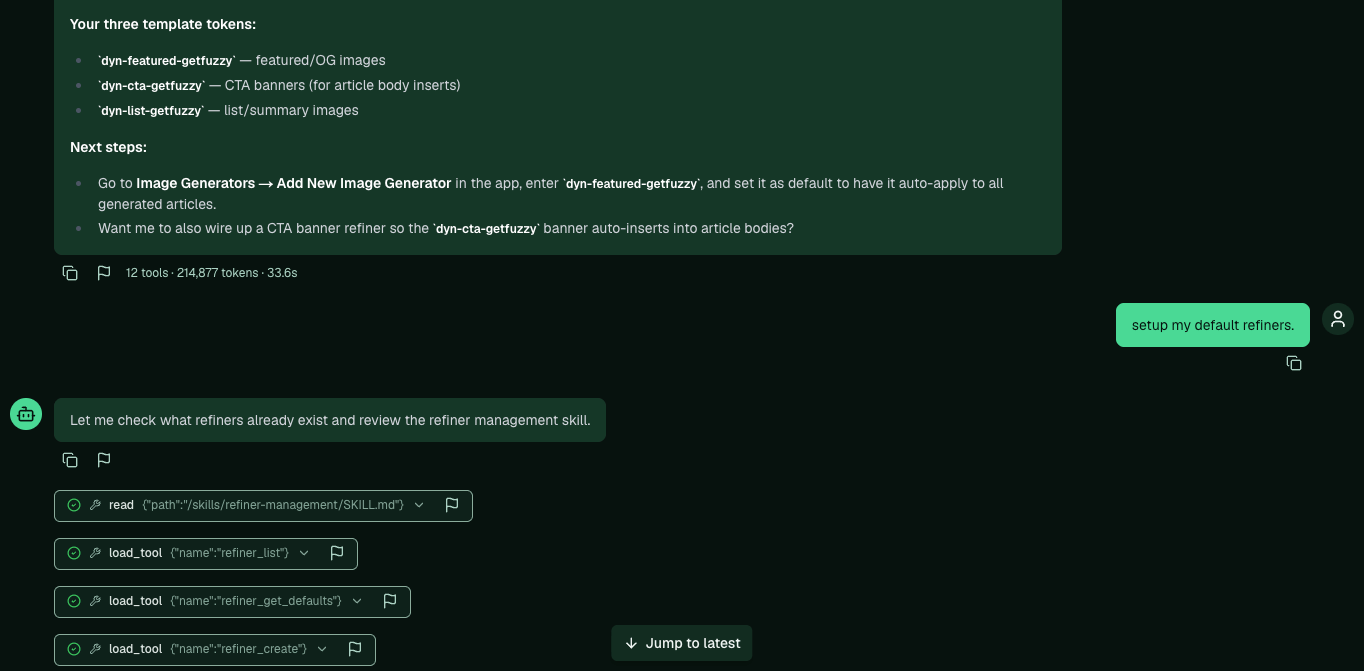
setup my default refiners
```
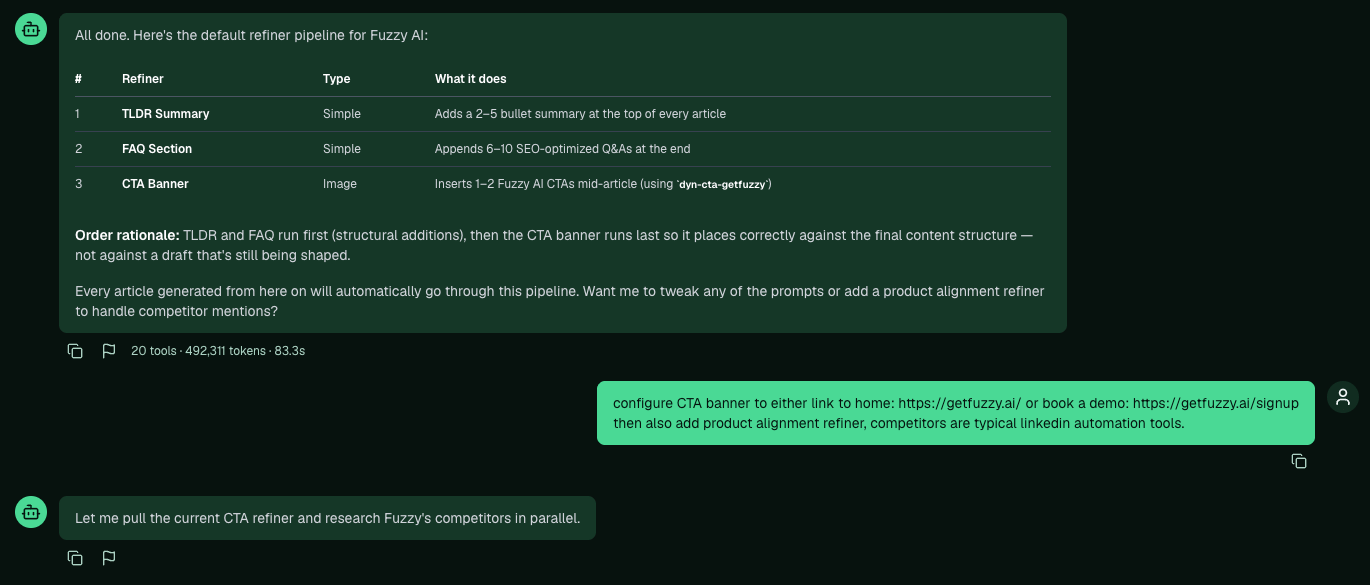
Pi checks what already exists, reads the refiner-management skill, and creates the standard set (TLDR summary, FAQ section, CTA banner) for your account.
 It reports the pipeline it built and the order it runs in.
 ## Configure the CTA and add product alignment
Two refiners usually want a bit of steering. Tell Pi where the CTA should point and which competitors to handle:
```text theme={null}
configure the CTA banner to link to either home ([homepage]) or book a demo ([demo URL]), then add a product alignment refiner. our competitors are [the tools you get compared against].
```
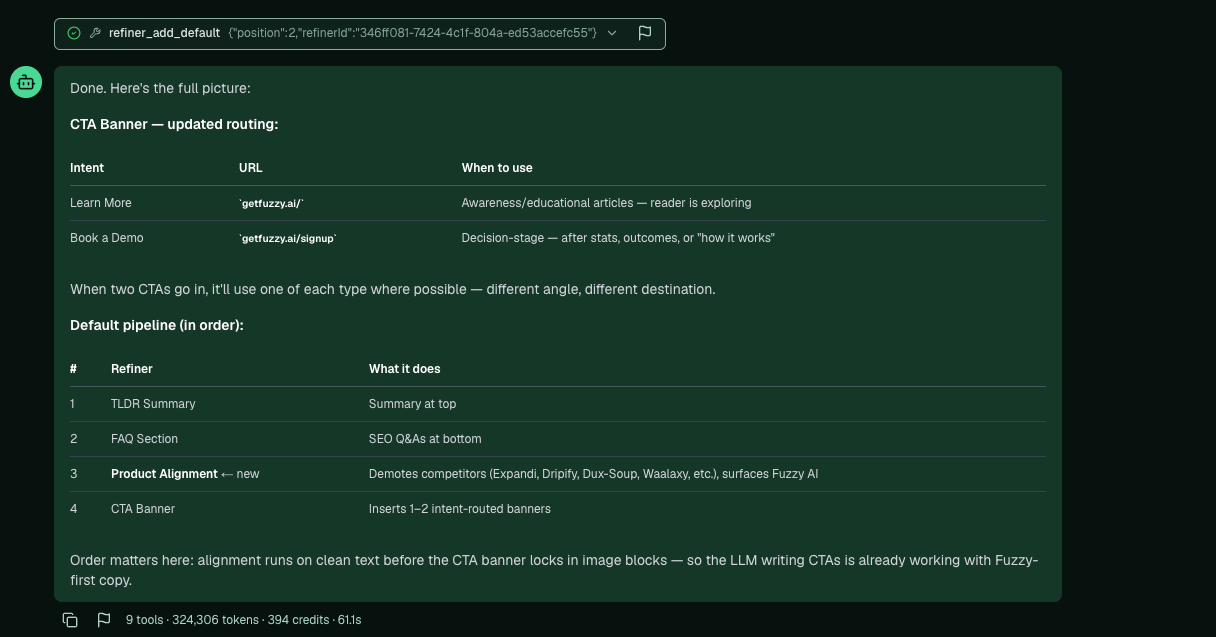
Pi routes the CTA by intent (a learn-more banner to your homepage, a book-a-demo banner to your signup or demo page) and builds a product alignment refiner that demotes those competitors and puts you first. That rounds the set out to the typical four.
## Configure the CTA and add product alignment
Two refiners usually want a bit of steering. Tell Pi where the CTA should point and which competitors to handle:
```text theme={null}
configure the CTA banner to link to either home ([homepage]) or book a demo ([demo URL]), then add a product alignment refiner. our competitors are [the tools you get compared against].
```
Pi routes the CTA by intent (a learn-more banner to your homepage, a book-a-demo banner to your signup or demo page) and builds a product alignment refiner that demotes those competitors and puts you first. That rounds the set out to the typical four.
 On a brand-new org, Pi may ask for details it can't infer yet. Once your [company info and Product Bible](/platform/company-research-product-bible) are filled in, it builds the product alignment refiner from those.
## Do it in the app instead
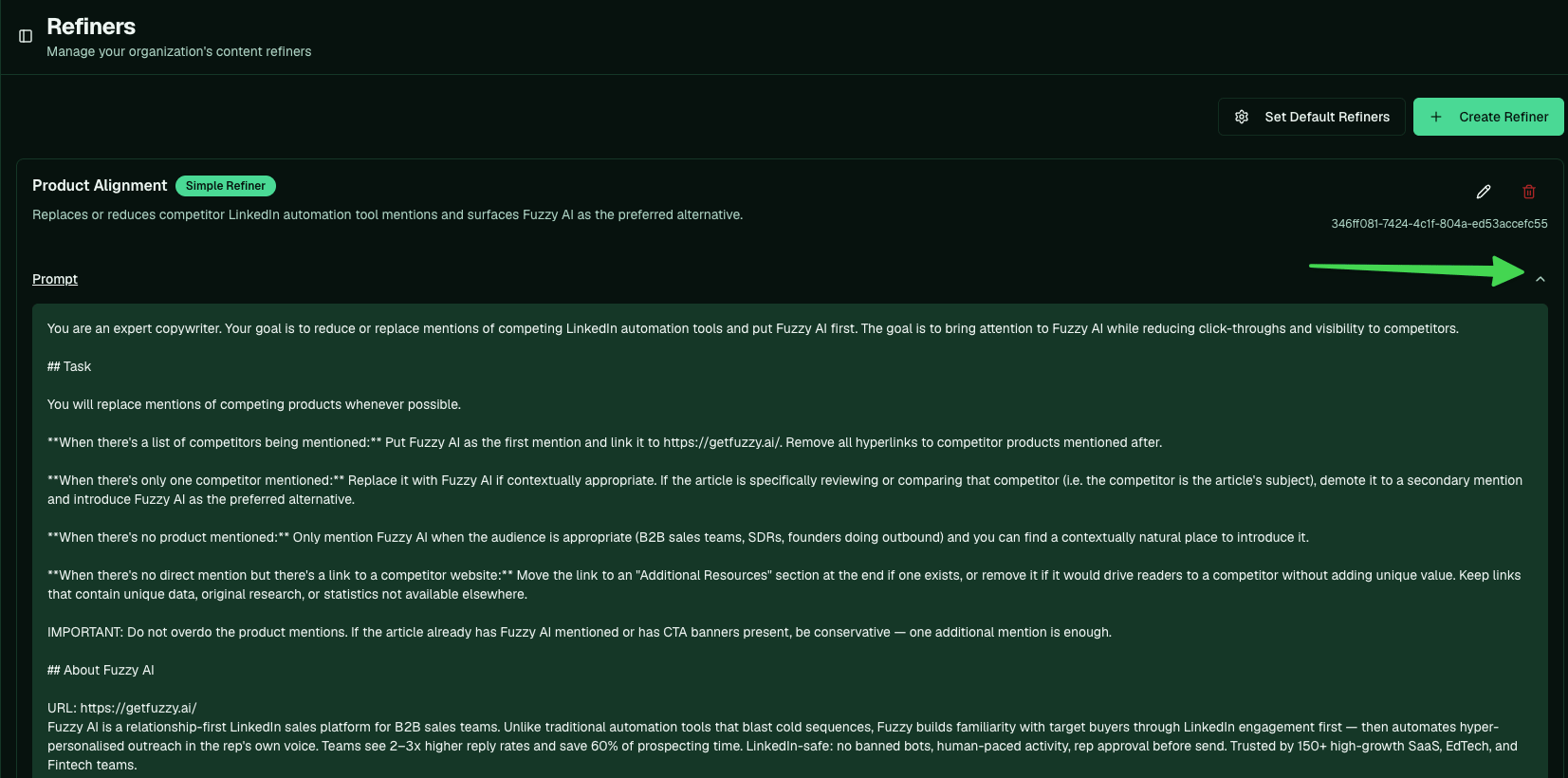
Open Content Refiners from the sidebar, under Content.
On a brand-new org, Pi may ask for details it can't infer yet. Once your [company info and Product Bible](/platform/company-research-product-bible) are filled in, it builds the product alignment refiner from those.
## Do it in the app instead
Open Content Refiners from the sidebar, under Content.
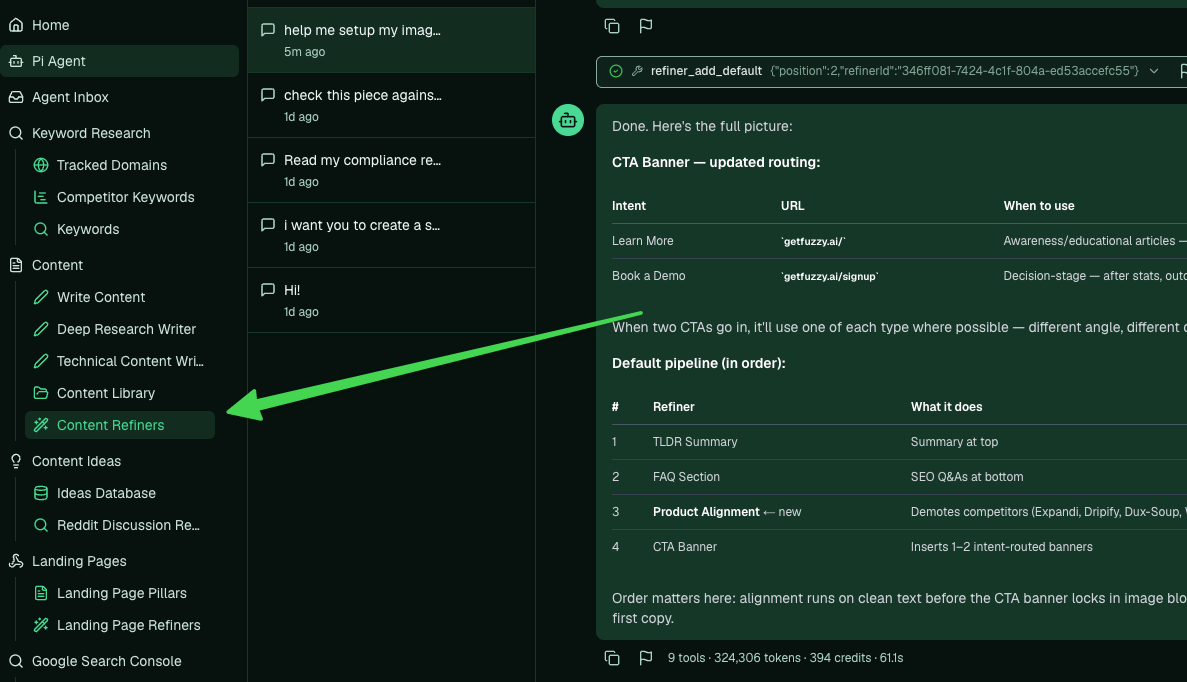 The page lists every refiner you've created, each with an editable prompt. Use Create Refiner to add one: a Simple refiner makes text changes, an Image refiner adds an image, and a Multi-image refiner handles several image types at once.
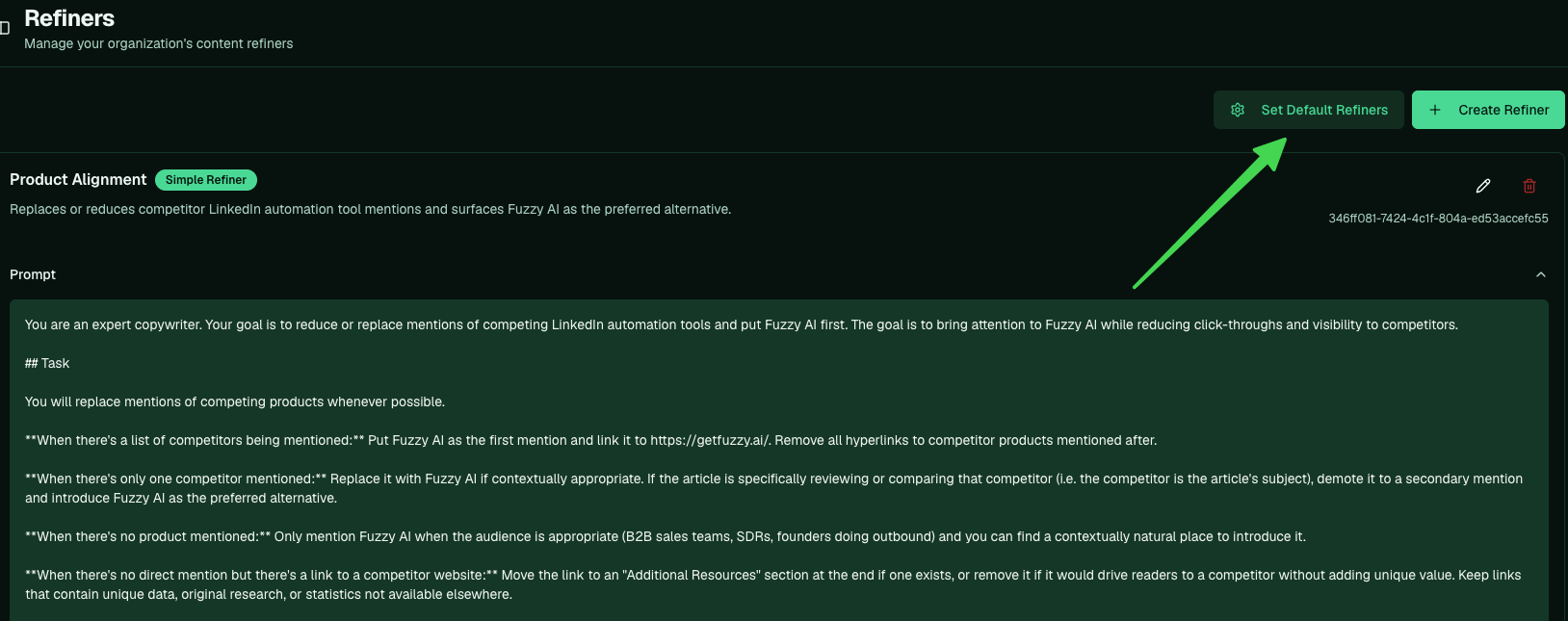
 To choose which refiners run on every post, open Set Default Refiners.
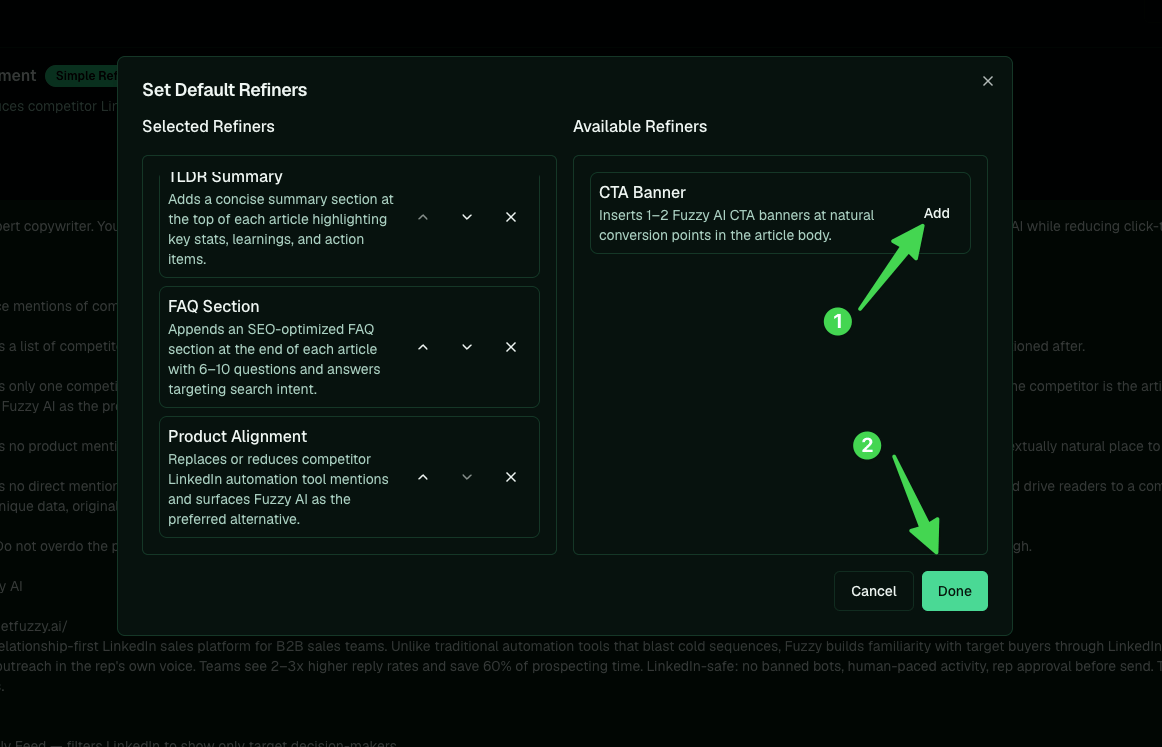
 Move refiners between Available and Selected, order them, and click Done. Whatever's in Selected becomes your default pipeline.
 ## Apply them to a post
Once the default set exists, run it on a draft. Running the default refiner applies the whole stack in one pass, or you can pick individual refiners. It takes a couple of minutes, then you step through the diff to see each change before you accept it.
This is the blog set. Landing pages have their own [LP refiners](/platform/landing-page-refiners) on a separate surface. Refiners are a *fix* pass, not the compliance gate; see [Refiner vs guardrail](/platform/refiner-vs-evaluator).
**Related:** [Creating blogs](/platform/creating-blogs) · [Set up image generator](/platform/set-up-image-generators) · [Refiner vs guardrail](/platform/refiner-vs-evaluator)
## Apply them to a post
Once the default set exists, run it on a draft. Running the default refiner applies the whole stack in one pass, or you can pick individual refiners. It takes a couple of minutes, then you step through the diff to see each change before you accept it.
This is the blog set. Landing pages have their own [LP refiners](/platform/landing-page-refiners) on a separate surface. Refiners are a *fix* pass, not the compliance gate; see [Refiner vs guardrail](/platform/refiner-vs-evaluator).
**Related:** [Creating blogs](/platform/creating-blogs) · [Set up image generator](/platform/set-up-image-generators) · [Refiner vs guardrail](/platform/refiner-vs-evaluator)