> ## Documentation Index
> Fetch the complete documentation index at: https://docs.synscribe.com/llms.txt
> Use this file to discover all available pages before exploring further.
# How to publish your blog with the right metadata
> Copy a finished post into your CMS, pick the right slug and description, and publish by hand or through a platform integration.
Once a post is written and edited, publishing is mostly copy and paste. Copy the body from the Content tab (Rich Text with images embedded is the easiest), pick a clean slug and a description on the Metadata tab, and paste it into your CMS. Choose the SEO-optimized metadata description if you want more keywords, or the regular one if you want it to read naturally. If your CMS is Webflow, WordPress, Framer, or Wisp, you can skip the copy-paste and publish through a platform integration instead.
## Copy the content
On the Content tab, use the copy buttons to grab the post in the format your CMS wants:
* Copy as Rich Text, with Embed Images so the images travel with the text and paste straight in. (Link Images keeps them as references instead.)
* Copy as Markdown, HTML, or CSV for CMSes or workflows that prefer those.
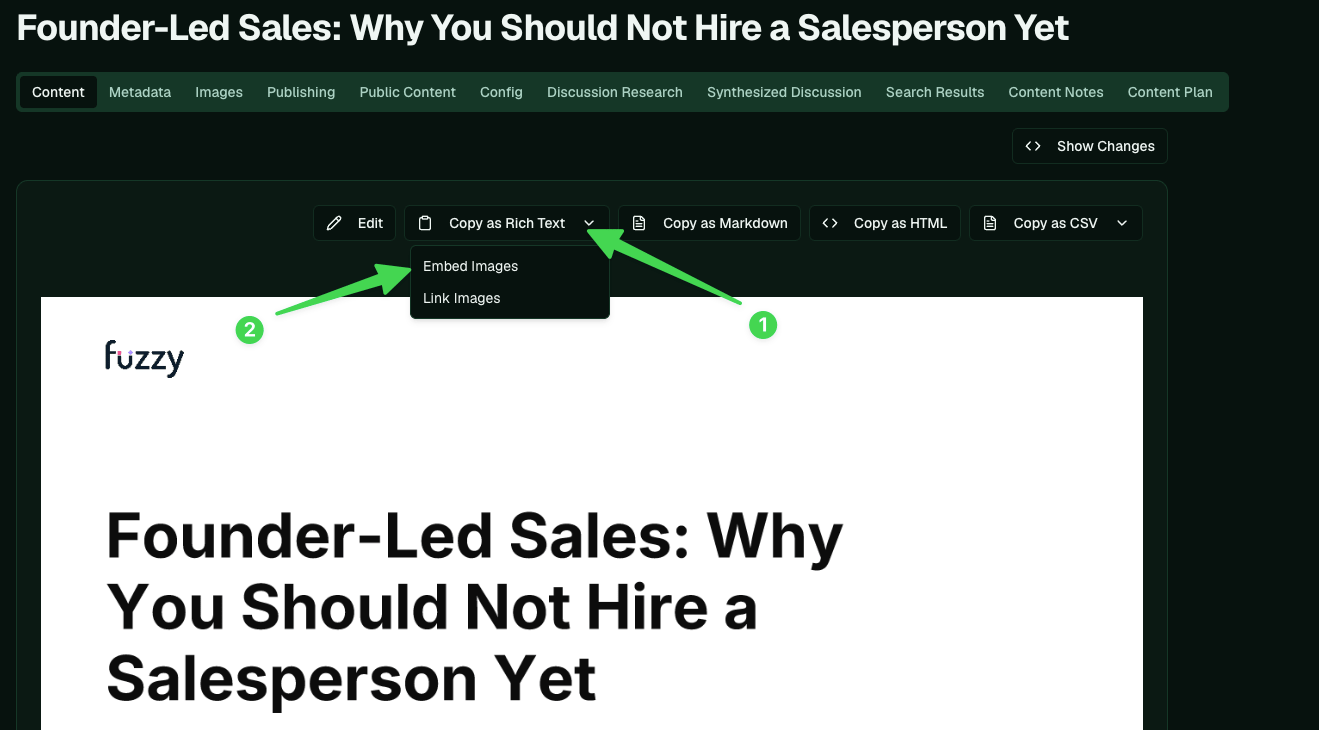 Rich Text with embedded images is the simplest for most CMSes: copy, paste, and the images come along.
## Pick the metadata
On the Metadata tab, set the two things search engines read first.
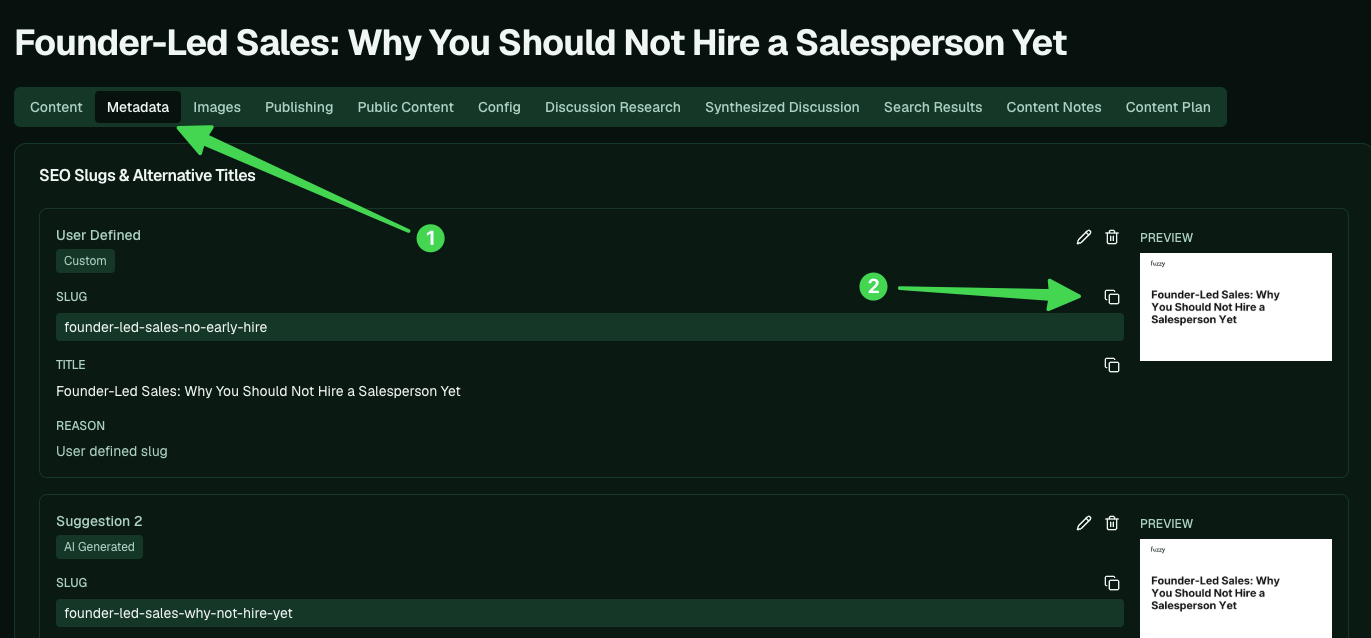
* Slug. Pick a good one from the suggestions (each has a copy button and a preview), or keep your own.
* Description. You get two flavors: the metadata description is more SEO-optimized and works in more keywords, while the regular description reads more naturally for a human. Choose the one that fits and copy it into your CMS.
You can also choose the preview (OG) image here if you want a specific one.
Rich Text with embedded images is the simplest for most CMSes: copy, paste, and the images come along.
## Pick the metadata
On the Metadata tab, set the two things search engines read first.
* Slug. Pick a good one from the suggestions (each has a copy button and a preview), or keep your own.
* Description. You get two flavors: the metadata description is more SEO-optimized and works in more keywords, while the regular description reads more naturally for a human. Choose the one that fits and copy it into your CMS.
You can also choose the preview (OG) image here if you want a specific one.
 ## Publish it
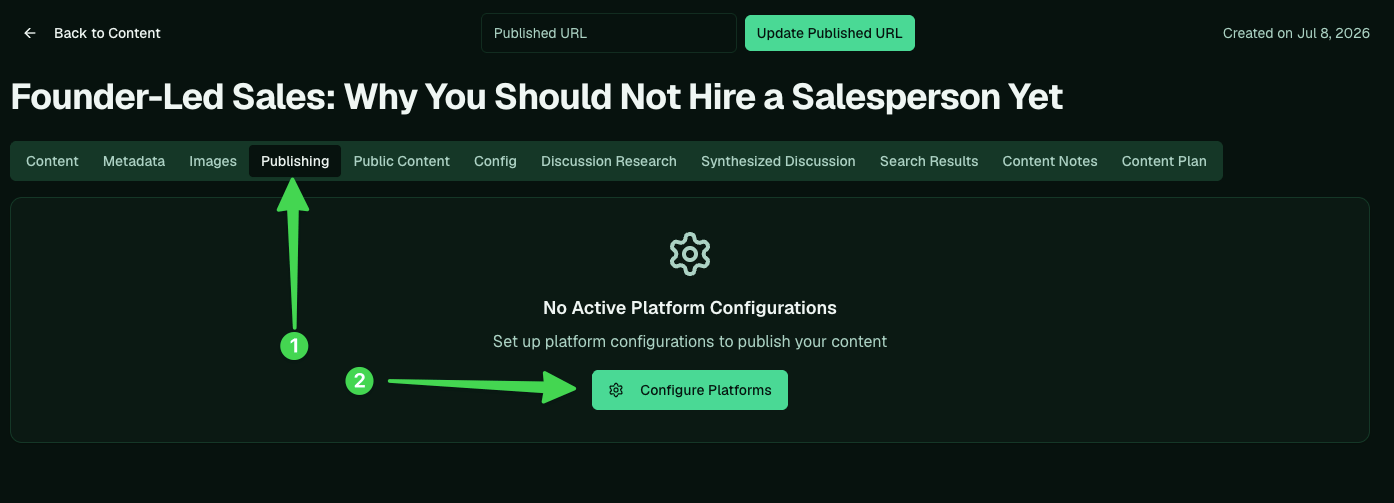
Paste everything into your CMS and publish there. Then record where it went live: put the address in the Published URL field on the Publishing tab so Synscribe knows the post is live.
To skip the copy-paste, publish through a platform integration. Synscribe currently connects to Webflow, WordPress, Framer, and Wisp. Open the Publishing tab and Configure Platforms to set one up (platform setup is covered in its own guides). If you need an integration that isn't listed yet, let us know.
## Publish it
Paste everything into your CMS and publish there. Then record where it went live: put the address in the Published URL field on the Publishing tab so Synscribe knows the post is live.
To skip the copy-paste, publish through a platform integration. Synscribe currently connects to Webflow, WordPress, Framer, and Wisp. Open the Publishing tab and Configure Platforms to set one up (platform setup is covered in its own guides). If you need an integration that isn't listed yet, let us know.
 Before you publish, do any last copy fixes on the [editing](/platform/edit-articles) step.
**Back to:** [Creating blogs](/platform/creating-blogs) · **Related:** [Edit an AI-generated article](/platform/edit-articles)
Before you publish, do any last copy fixes on the [editing](/platform/edit-articles) step.
**Back to:** [Creating blogs](/platform/creating-blogs) · **Related:** [Edit an AI-generated article](/platform/edit-articles)