> ## Documentation Index
> Fetch the complete documentation index at: https://docs.synscribe.com/llms.txt
> Use this file to discover all available pages before exploring further.
# How does Pi work with files
> Pi keeps its own private notes about your account. Say "save this to memory" and it files your research and decisions so later chats recall them.
Pi keeps its own private notebook about your account, and it reads from it every time it works. When
you want Pi to remember something, tell it in plain language: "save this to memory." It files the
research, strategy, or notes and can recall them in later chats. This notebook is private to your
account, so nothing is shared with anyone else. Saving to memory is different from
[filing a report](/platform/file-a-report), which is for telling us when something's broken.
## Open and browse your files
You can look through everything Pi keeps, yourself. Open the Files panel from the file icon at the top
right of the Pi Agent screen.
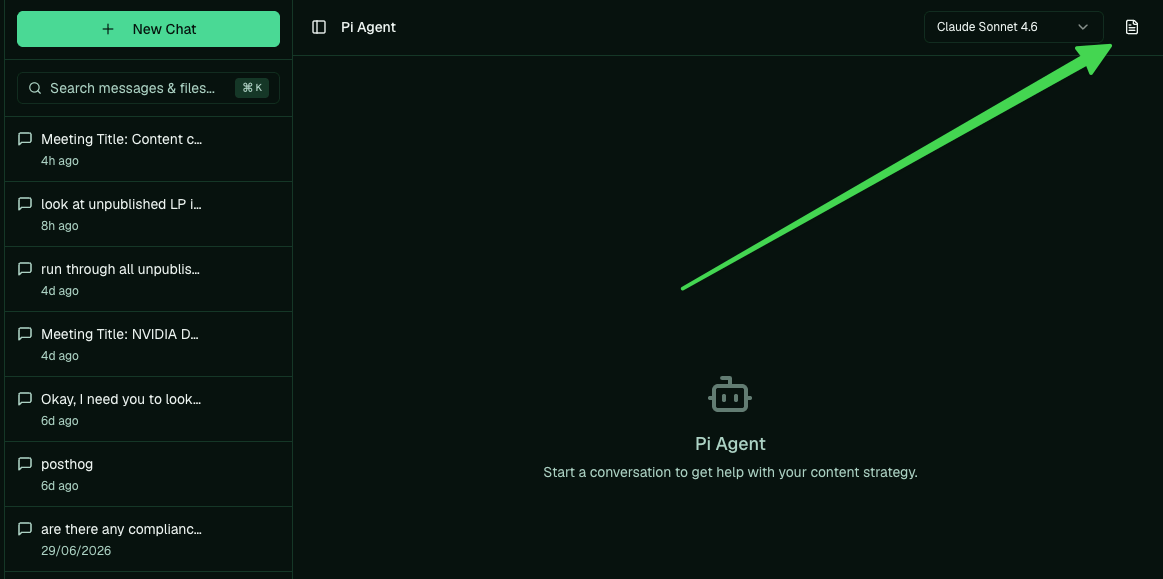 It works like the files on your computer. Everything is organized into folders, with a few core files
(like MEMORY.md, the running index of what Pi knows) at the top level.
It works like the files on your computer. Everything is organized into folders, with a few core files
(like MEMORY.md, the running index of what Pi knows) at the top level.
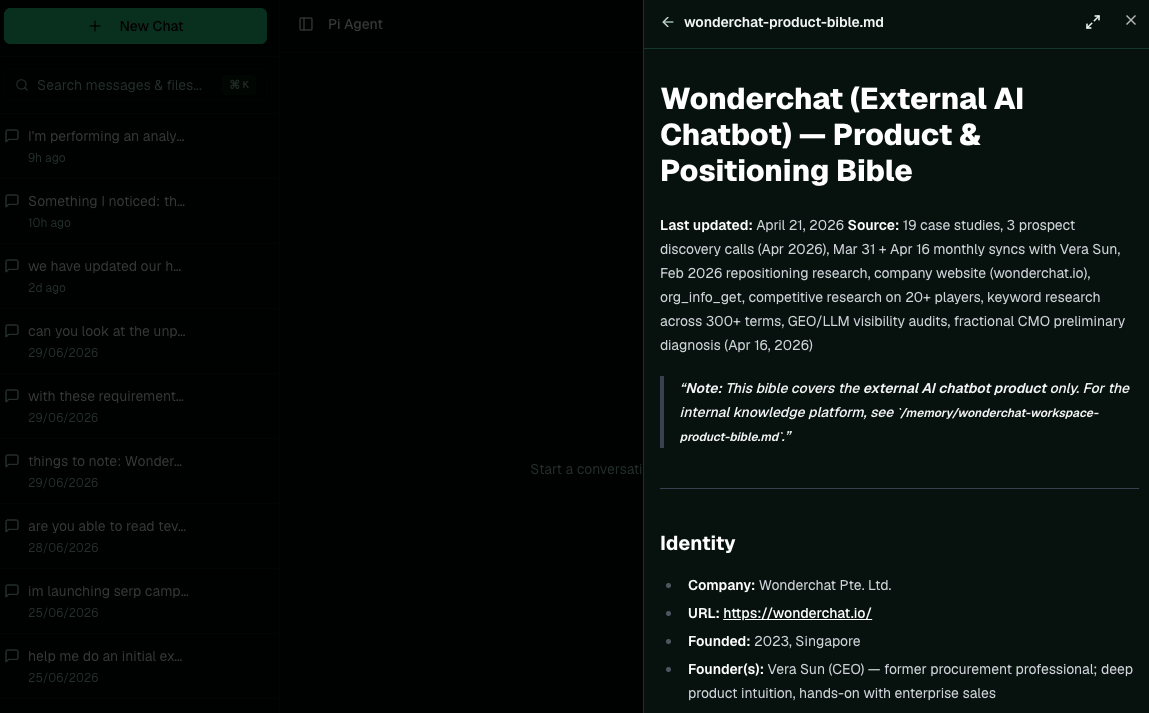
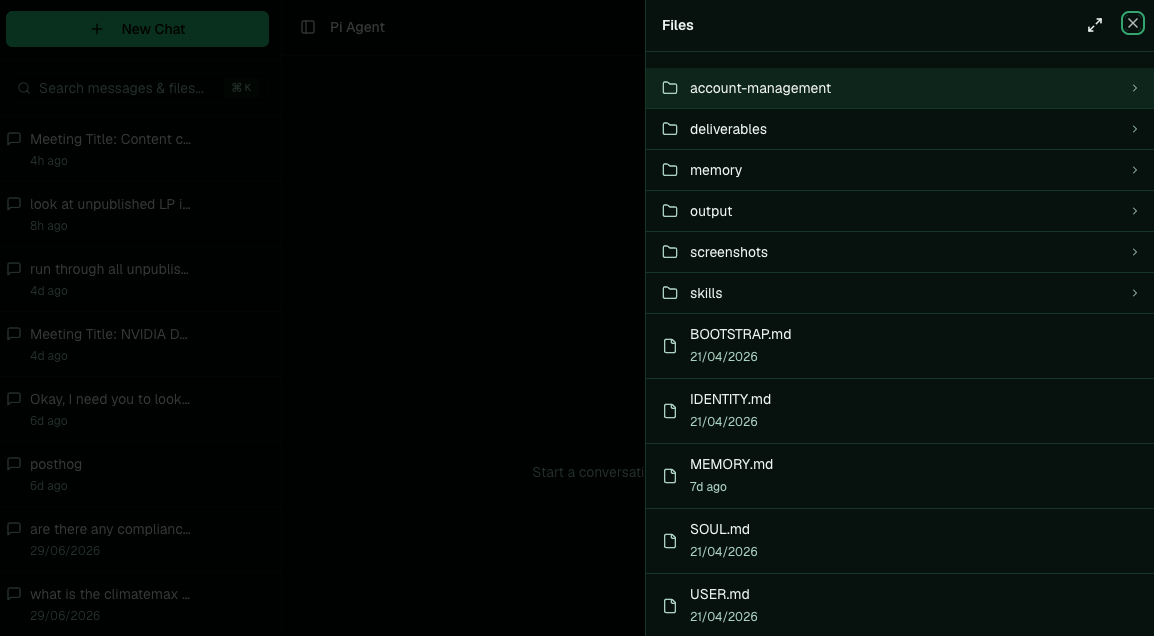 Click any file to read it, and it opens right in the panel.
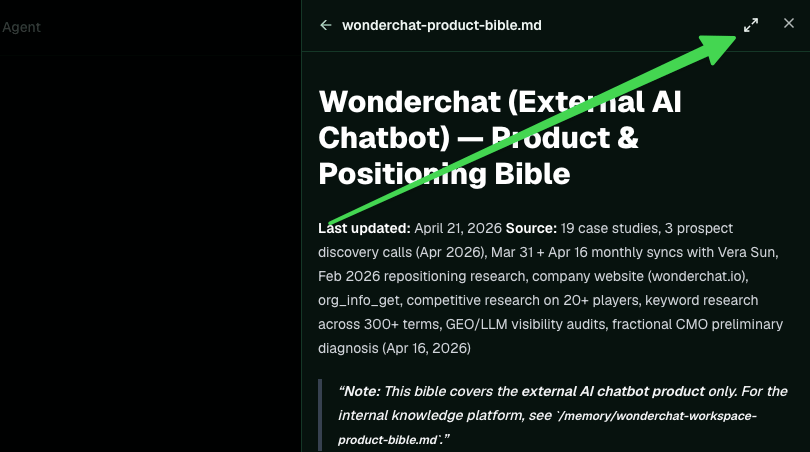
 For a bigger view, use expand to open the file full screen.
 Two more things worth knowing.
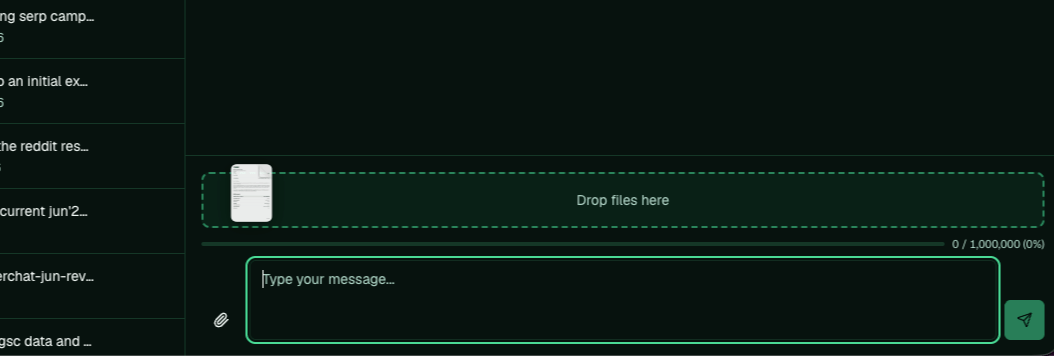
Drag and drop files or folders straight into a conversation to hand them to Pi.
Two more things worth knowing.
Drag and drop files or folders straight into a conversation to hand them to Pi.
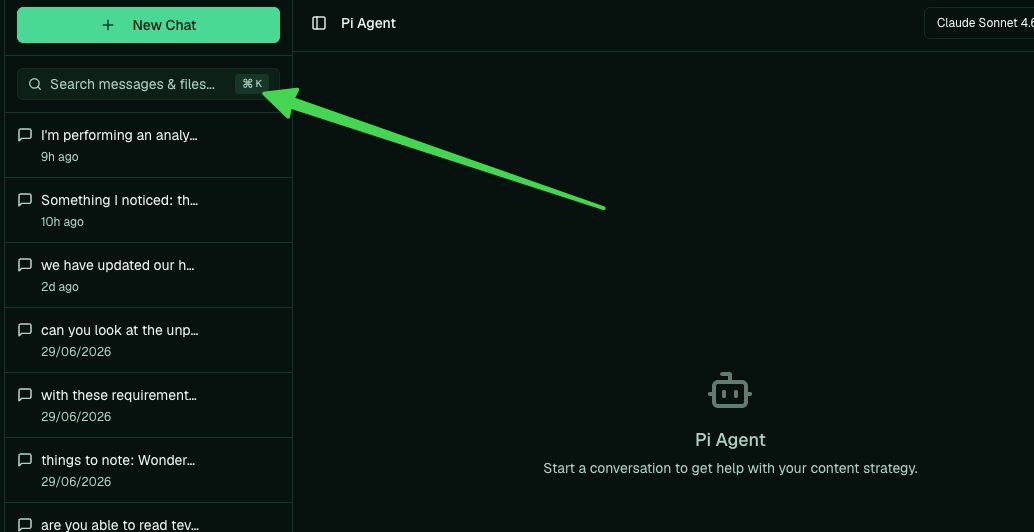
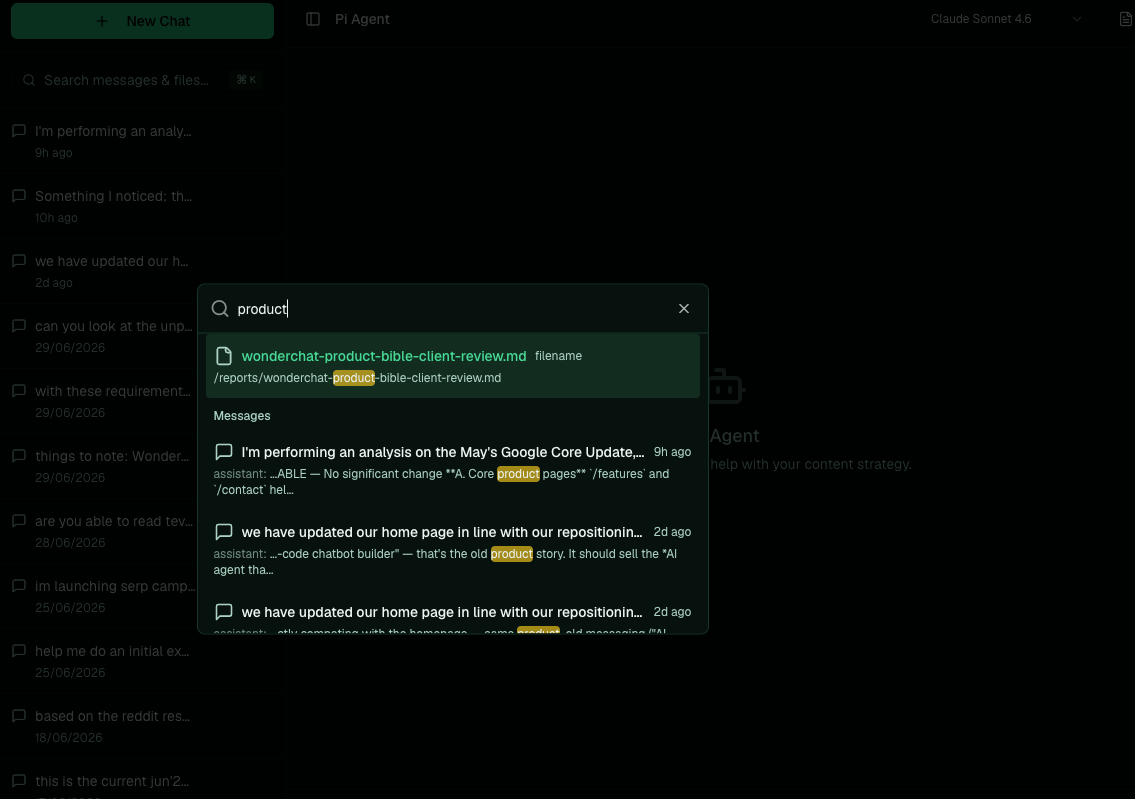
 Search across everything from the search box in the left sidebar, or press Cmd+K. It matches both
file names and the text inside them.
Search across everything from the search box in the left sidebar, or press Cmd+K. It matches both
file names and the text inside them.
 ## What Pi remembers
Pi's memory holds two kinds of things:
* A small set of core notes about your business, set up when you first get started: who Pi is working for, and a running index of what it knows.
* A growing set of memory files where it saves research, strategy docs, and decisions as you work, so it gets sharper about your account over time.
You don't manage any of this by hand. Pi files and organizes it for you; you just tell it what's
worth keeping.
## How to ask Pi to save something
Tell it in plain language and it does the filing:
```text theme={null}
save this to memory
```
```text theme={null}
here's the transcript and notes from my latest planning call. save this to memory.
```
Pi writes it down and indexes it, so a later chat can pull it back up.
## Saving to memory vs. reporting a problem
These are two different things. Saving to memory keeps knowledge about your account that Pi should
recall later. [Filing a report](/platform/file-a-report) tells us about a bug or a bad answer, and
has nothing to do with your account's knowledge. Don't confuse "save this to memory" with "report
this."
**Back to:** [What is Pi Agent](/platform/what-is-pi-agent) · **Related:** [Agent-operated SEO](/theory/agent-operated-seo)
## What Pi remembers
Pi's memory holds two kinds of things:
* A small set of core notes about your business, set up when you first get started: who Pi is working for, and a running index of what it knows.
* A growing set of memory files where it saves research, strategy docs, and decisions as you work, so it gets sharper about your account over time.
You don't manage any of this by hand. Pi files and organizes it for you; you just tell it what's
worth keeping.
## How to ask Pi to save something
Tell it in plain language and it does the filing:
```text theme={null}
save this to memory
```
```text theme={null}
here's the transcript and notes from my latest planning call. save this to memory.
```
Pi writes it down and indexes it, so a later chat can pull it back up.
## Saving to memory vs. reporting a problem
These are two different things. Saving to memory keeps knowledge about your account that Pi should
recall later. [Filing a report](/platform/file-a-report) tells us about a bug or a bad answer, and
has nothing to do with your account's knowledge. Don't confuse "save this to memory" with "report
this."
**Back to:** [What is Pi Agent](/platform/what-is-pi-agent) · **Related:** [Agent-operated SEO](/theory/agent-operated-seo)