> ## Documentation Index
> Fetch the complete documentation index at: https://docs.synscribe.com/llms.txt
> Use this file to discover all available pages before exploring further.
# How to edit an AI-generated article
> Three ways to edit a draft on Synscribe (a refiner, by hand, or an AI edit), plus Pi, each stored as a layer you can review and undo.
There are three ways to edit a draft on Synscribe, and Pi makes a fourth. Run a refiner to apply your standard edits, open the markdown editor and change it by hand, or describe a change and let AI make it surgically. Every edit is stored as its own layer on top of the original, so you can Show Changes to see exactly what moved and delete a layer to undo it. It all happens on the article's Content tab; you can also just tell Pi to edit the piece.
## Every edit is a layer
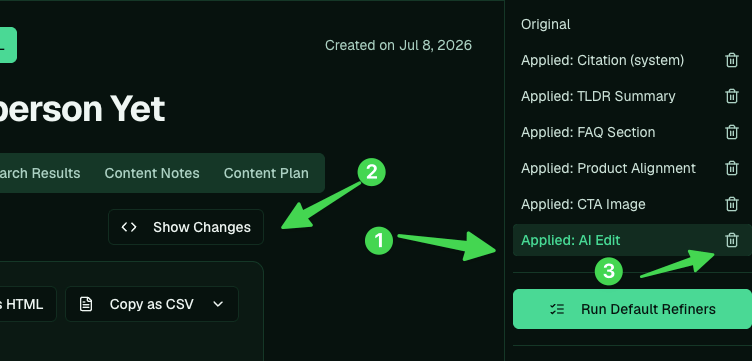
Worth knowing up front, because it applies to all three methods: each edit is stored as a separate layer above the Original (Applied: TLDR Summary, Applied: AI Edit, and so on). Nothing overwrites the draft. Hit Show Changes to see exactly what a layer changed, and delete a layer to reverse it.
 ## 1. Run a refiner
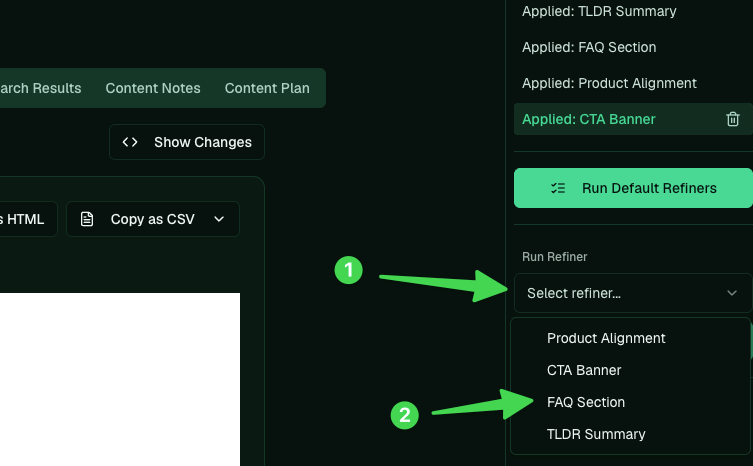
If you've [set up refiners](/platform/set-up-refiners), apply your standard edits in one click. Run Default Refiners applies your whole default set, or pick one from Select refiner and hit Run Refiner.
## 1. Run a refiner
If you've [set up refiners](/platform/set-up-refiners), apply your standard edits in one click. Run Default Refiners applies your whole default set, or pick one from Select refiner and hit Run Refiner.
 ## 2. Edit it by hand
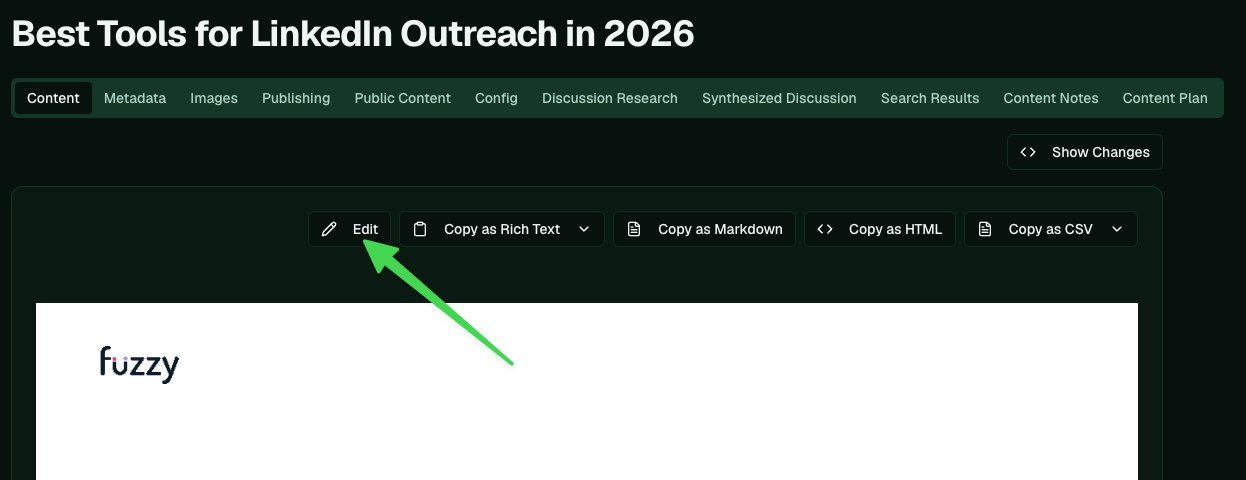
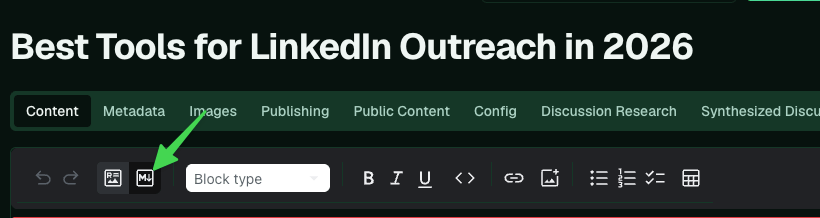
Click Edit to open the editor, switch to the markdown surface, and change whatever you want (say, calling yourself "Fuzzy" instead of "Fuzzy AI").
## 2. Edit it by hand
Click Edit to open the editor, switch to the markdown surface, and change whatever you want (say, calling yourself "Fuzzy" instead of "Fuzzy AI").
 Save with Ctrl-S (or Command-S) and the change is stored as a new layer.
 ## 3. Describe the change for AI
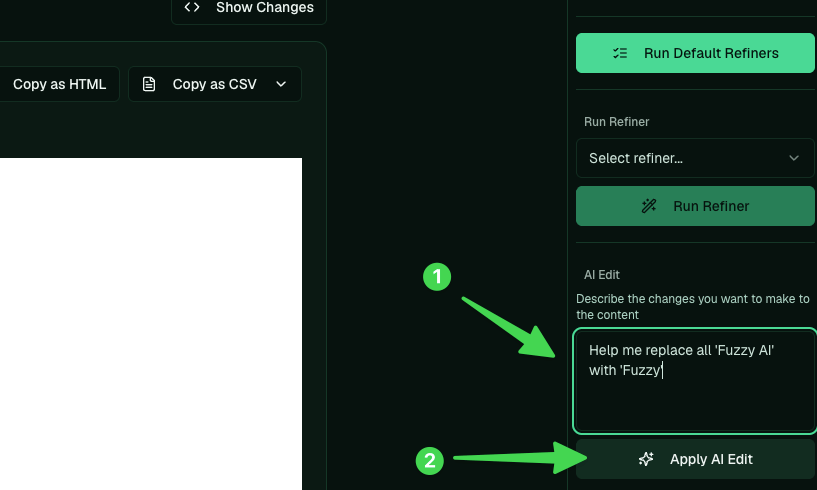
In the AI Edit box, describe what you want and Apply AI Edit:
```text theme={null}
Help me replace all 'Fuzzy AI' with 'Fuzzy'
```
It makes a surgical edit across the whole article and adds it as an AI Edit layer, so you can Show Changes to review it and delete it if you change your mind.
## 3. Describe the change for AI
In the AI Edit box, describe what you want and Apply AI Edit:
```text theme={null}
Help me replace all 'Fuzzy AI' with 'Fuzzy'
```
It makes a surgical edit across the whole article and adds it as an AI Edit layer, so you can Show Changes to review it and delete it if you change your mind.
 ## Or just ask Pi
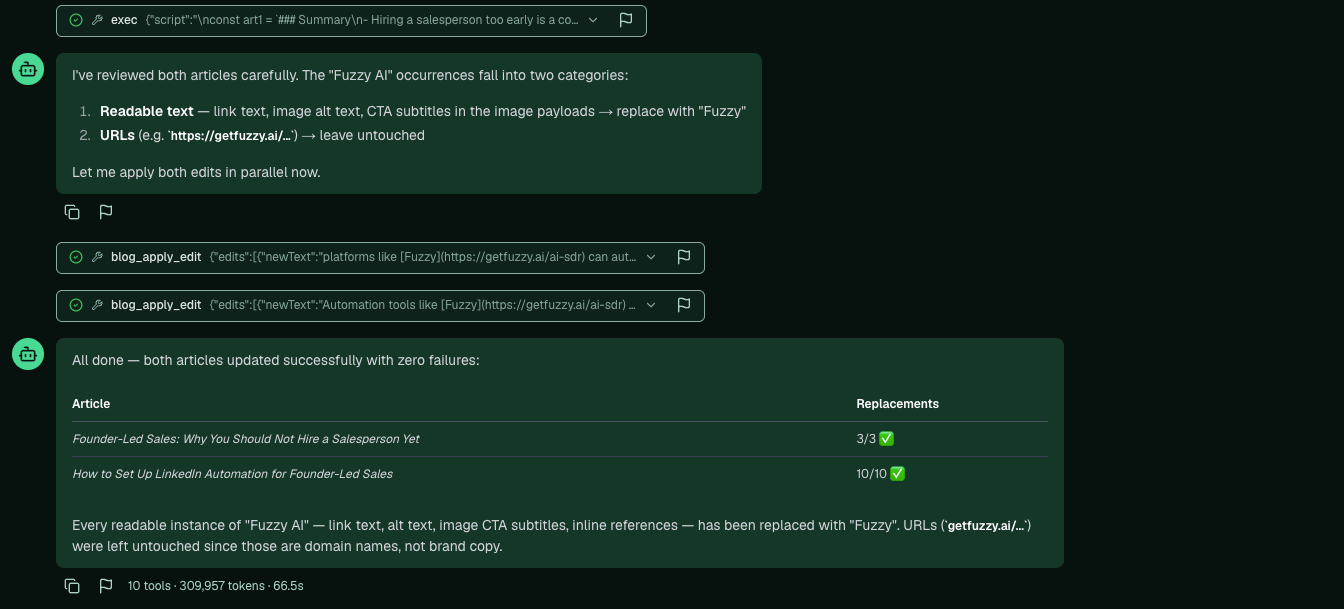
You can also do the whole thing from a Pi chat. Tell it which article and what to change:
```text theme={null}
see the blog on [title], replace all instances of [Fuzzy AI] with just [Fuzzy]
```
Pi edits the readable text (link text, image alt text, CTA copy) and leaves URLs untouched, then reports exactly what it changed.
## Or just ask Pi
You can also do the whole thing from a Pi chat. Tell it which article and what to change:
```text theme={null}
see the blog on [title], replace all instances of [Fuzzy AI] with just [Fuzzy]
```
Pi edits the readable text (link text, image alt text, CTA copy) and leaves URLs untouched, then reports exactly what it changed.
 ## What to check while editing
* Title contains the keyword, and the summary mentions the company.
* Competitor links removed, company positioned first.
* Claims are accurate. Don't ship anything you can't say (the compliance guardrail also checks this at publish).
For the full bar, see [Part 1 §1.11 Definition of Done](/theory/definition-of-done) and run the [technical SEO audit](/platform/technical-seo-audit) after.
**Back to:** [Creating blogs](/platform/creating-blogs) · **Next:** [Publish your blog](/platform/publish-your-blog) · **Related:** [Set up refiners](/platform/set-up-refiners)
## What to check while editing
* Title contains the keyword, and the summary mentions the company.
* Competitor links removed, company positioned first.
* Claims are accurate. Don't ship anything you can't say (the compliance guardrail also checks this at publish).
For the full bar, see [Part 1 §1.11 Definition of Done](/theory/definition-of-done) and run the [technical SEO audit](/platform/technical-seo-audit) after.
**Back to:** [Creating blogs](/platform/creating-blogs) · **Next:** [Publish your blog](/platform/publish-your-blog) · **Related:** [Set up refiners](/platform/set-up-refiners)