> ## Documentation Index
> Fetch the complete documentation index at: https://docs.synscribe.com/llms.txt
> Use this file to discover all available pages before exploring further.
# Synscribe Training & Playbook
> How to run your SEO on Synscribe with Pi, your AI agent: the typical workflow, and how to get it to plan, write, publish, and report.
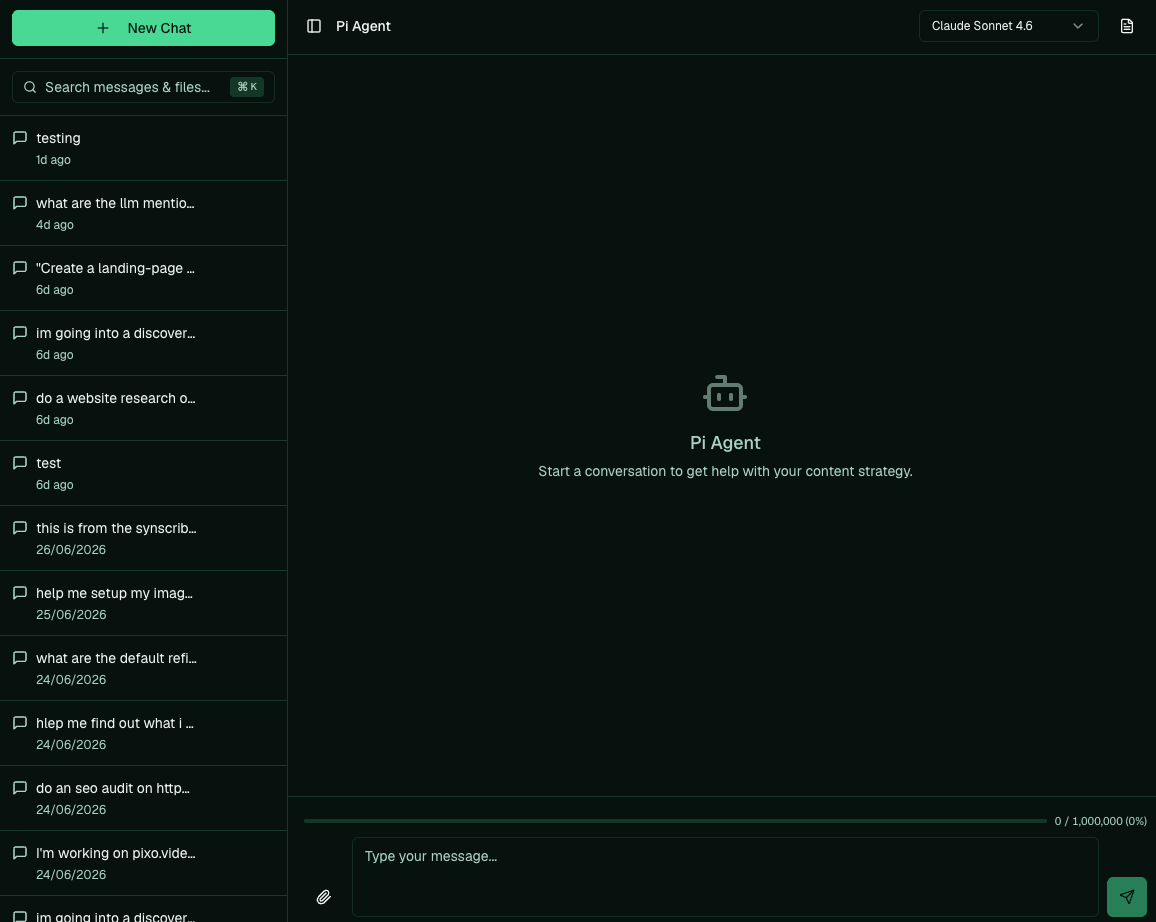
Synscribe runs on Pi, an AI agent that does most of the SEO work for you. Pi researches and plans
what to write, writes it, helps you publish it, and reports on how it performs. Your job is to steer
it and approve what it produces. So most of "how do I do X" in these guides is really "what do I ask
Pi," and we show you the actual prompts people send.
This guide walks you through the typical workflow and how to get Pi to do each part of it.
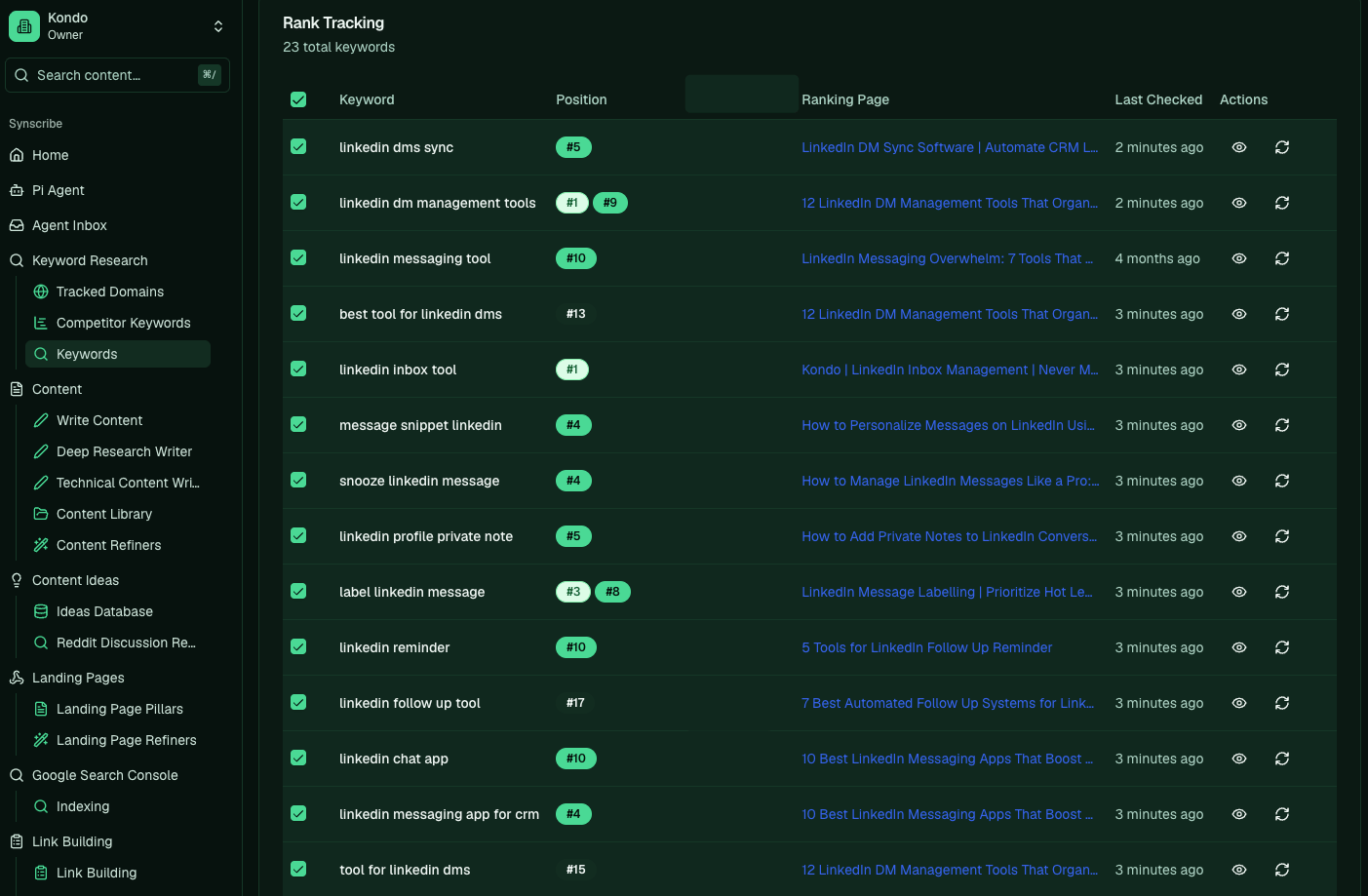
 Alongside Pi, you have the app itself. It holds everything about your account: your company profile,
competitors, products, keywords, strategy, content plan, drafts and published content, evaluators,
link-building partners, and more. You can open any of it in the UI and read or edit it yourself,
without going through Pi.
Alongside Pi, you have the app itself. It holds everything about your account: your company profile,
competitors, products, keywords, strategy, content plan, drafts and published content, evaluators,
link-building partners, and more. You can open any of it in the UI and read or edit it yourself,
without going through Pi.
 ## The typical workflow
A full cycle runs through four stages. You can point Pi at any of them, or do a step yourself in the
app.
1. [Plan and research](/platform/keyword-exploration): pick topics and confirm you can actually rank for them.
2. [Create the content](/platform/creating-blogs): Pi drafts landing pages and blog posts from the plan, then refiners polish them.
3. [Publish and distribute](/platform/publish-set-live-url): set pages live, get them indexed, and start link building.
4. [Review performance](/platform/performance-review): see what's ranking and decide what to do next.
## Find your path
Pick the one that sounds like you.
Follow the [Opinionated Guide](/opinionated-guide): our step-by-step for running SEO on Synscribe,
from setting up your account to publishing and reviewing. It's the path we'd take, in order.
You've been given access to do a specific job. Go straight to it: [publish content](/platform/publish-set-live-url),
[set up an evaluator](/platform/set-up-evaluator), or [pull a performance report](/platform/performance-review).
You know your way around and want a single answer, like how to run link building. Search the
how-to library, browsable by task and by feature.
## Getting around the app
The left sidebar is your whole workspace. A quick map of where each thing lives:
| What you want | Where it is |
| ----------------------------------------------- | ---------------- |
| Chat with Pi | Pi Agent |
| Answer whatever Pi is waiting on | Agent Inbox |
| Your keywords and rank tracking | Keyword Research |
| Your drafts and published pages | Content Library |
| Landing pages | Landing Pages |
| Connect Search Console, PostHog, and other data | Settings |
One thing to know early: there's no standalone "Publish" button. You publish a page from inside that
page, on its Publishing tab.
If you want the reasoning behind any of this, [Concepts](/theory/index) explains why we do SEO this
way.
## How to read these guides
Each guide answers one thing as briefly as it can and points you to the next action, so you can read
it fast and get back to work. We add a short video wherever one makes the task clearer.
When the answer is something you ask Pi, we show the exact prompt in a block, then say what Pi does
with it. Copy it, swap the `[bracketed]` parts for your own, and send it:
```text theme={null}
find me keywords that (1) do NOT have an existing landing page and
(2) are relevant to what [my product] actually sells. start from the BOFU
terms, then work up. dedupe against our existing inventory.
```
Pi researches candidate keywords, filters out ones you already cover, and hands back a shortlist for
you to approve.
Still stuck, or something here doesn't answer your question? Tell us on the
[Synscribe contact page](https://synscribe.com/contact?utm_source=training-docs\&utm_medium=referral)
and we'll help.
## The typical workflow
A full cycle runs through four stages. You can point Pi at any of them, or do a step yourself in the
app.
1. [Plan and research](/platform/keyword-exploration): pick topics and confirm you can actually rank for them.
2. [Create the content](/platform/creating-blogs): Pi drafts landing pages and blog posts from the plan, then refiners polish them.
3. [Publish and distribute](/platform/publish-set-live-url): set pages live, get them indexed, and start link building.
4. [Review performance](/platform/performance-review): see what's ranking and decide what to do next.
## Find your path
Pick the one that sounds like you.
Follow the [Opinionated Guide](/opinionated-guide): our step-by-step for running SEO on Synscribe,
from setting up your account to publishing and reviewing. It's the path we'd take, in order.
You've been given access to do a specific job. Go straight to it: [publish content](/platform/publish-set-live-url),
[set up an evaluator](/platform/set-up-evaluator), or [pull a performance report](/platform/performance-review).
You know your way around and want a single answer, like how to run link building. Search the
how-to library, browsable by task and by feature.
## Getting around the app
The left sidebar is your whole workspace. A quick map of where each thing lives:
| What you want | Where it is |
| ----------------------------------------------- | ---------------- |
| Chat with Pi | Pi Agent |
| Answer whatever Pi is waiting on | Agent Inbox |
| Your keywords and rank tracking | Keyword Research |
| Your drafts and published pages | Content Library |
| Landing pages | Landing Pages |
| Connect Search Console, PostHog, and other data | Settings |
One thing to know early: there's no standalone "Publish" button. You publish a page from inside that
page, on its Publishing tab.
If you want the reasoning behind any of this, [Concepts](/theory/index) explains why we do SEO this
way.
## How to read these guides
Each guide answers one thing as briefly as it can and points you to the next action, so you can read
it fast and get back to work. We add a short video wherever one makes the task clearer.
When the answer is something you ask Pi, we show the exact prompt in a block, then say what Pi does
with it. Copy it, swap the `[bracketed]` parts for your own, and send it:
```text theme={null}
find me keywords that (1) do NOT have an existing landing page and
(2) are relevant to what [my product] actually sells. start from the BOFU
terms, then work up. dedupe against our existing inventory.
```
Pi researches candidate keywords, filters out ones you already cover, and hands back a shortlist for
you to approve.
Still stuck, or something here doesn't answer your question? Tell us on the
[Synscribe contact page](https://synscribe.com/contact?utm_source=training-docs\&utm_medium=referral)
and we'll help.